Set Up Enterprise Email on iPhone (POP)
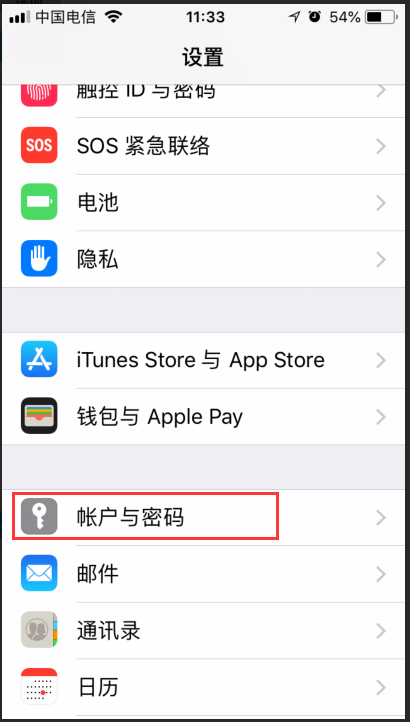
1. Open the iPhone and go to “Settings” → “Accounts & Passwords” (may differ between iOS versions).
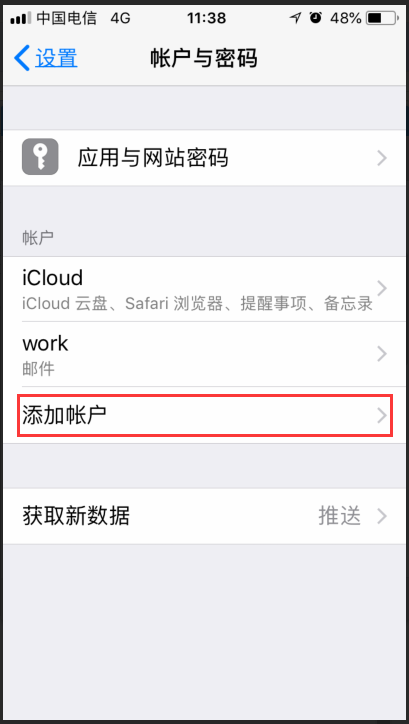
2. Click “Add Account”; when the following screen appears, click “Other”.
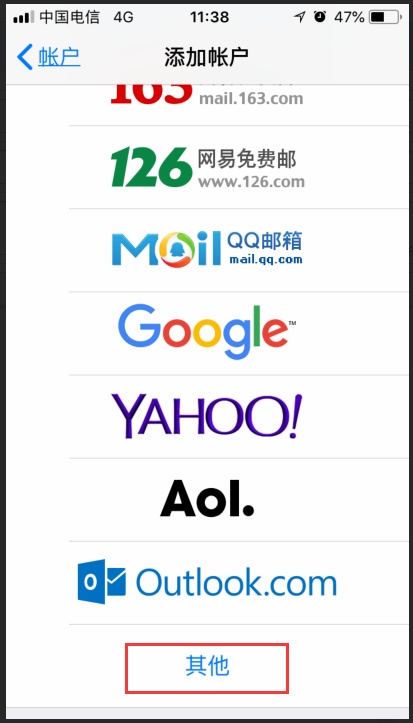
3. Click “Other” at the bottom.
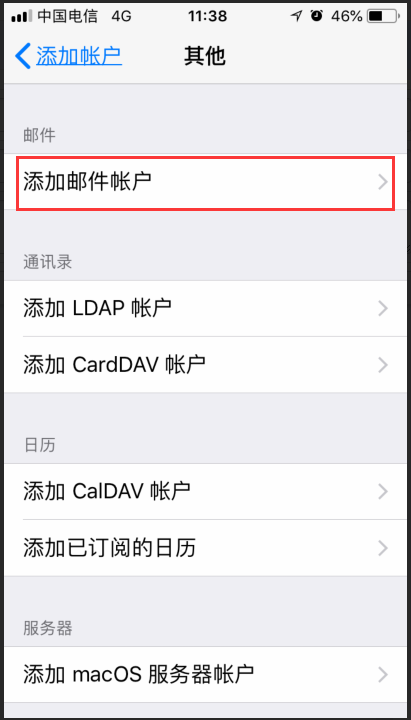
4. Click “Add Mail Account”.
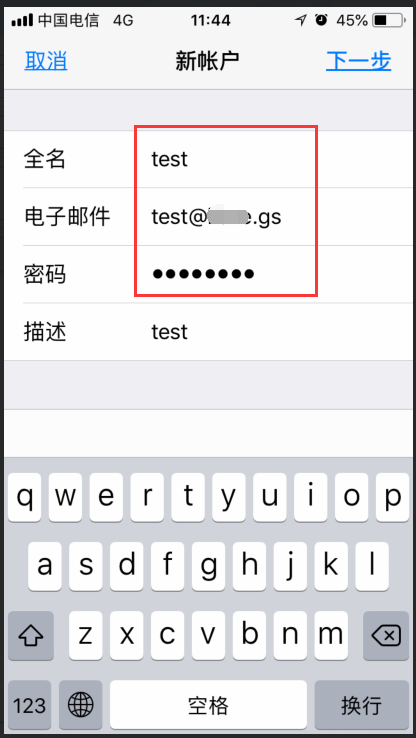
5. Fill in the full name (may be the mail user’s name), the email address and the password, then click “Next”.
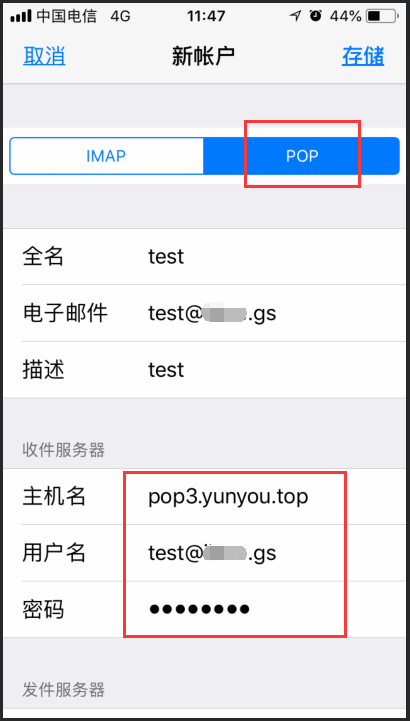
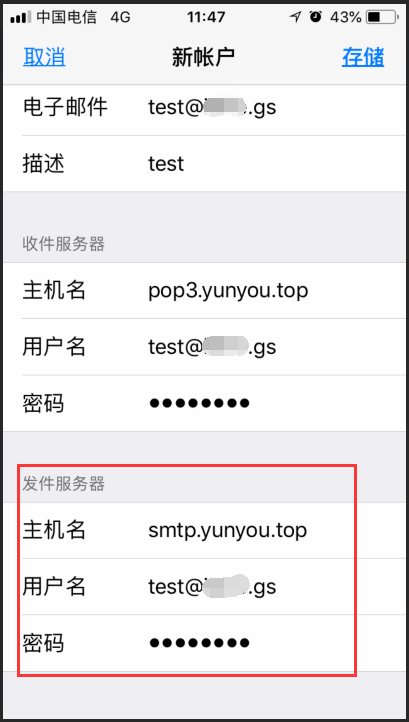
6. Click “POP” and fill in the hostname, username (the username must be the user’s full email address) and mailbox password for both the incoming and outgoing servers.
(If DNS records have been added for your domain as required, yunyou.top in the mail servers may be replaced with your own domain. Note: replacing it with your own domain will show the message “SSL connection not available” — select “Yes” to set up the account without SSL.)
Click “Save” to finish adding the mail account.
7. Click the Mail icon to open Mail.
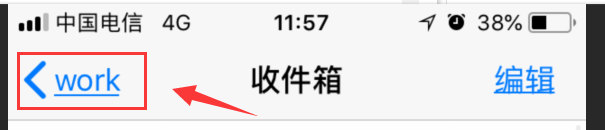
8. If you have multiple mailboxes, click “Mailboxes” at the top left and go back to see the newly added mailbox.