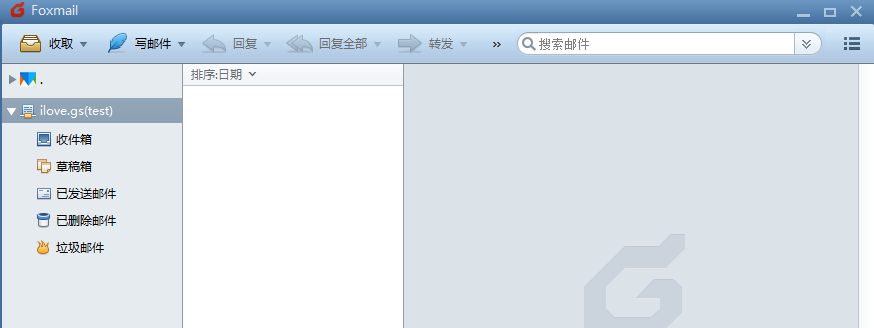
Configure Enterprise Email in Foxmail
This guide uses Foxmail 7.2 as an example to show how to set up enterprise email in the Foxmail client.
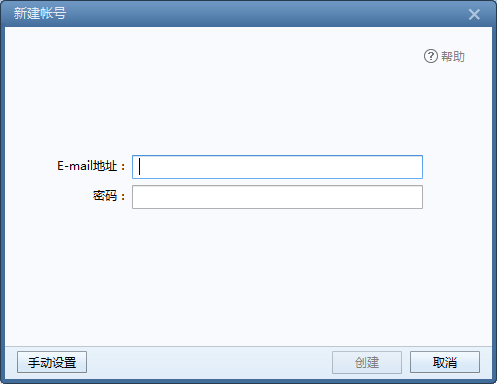
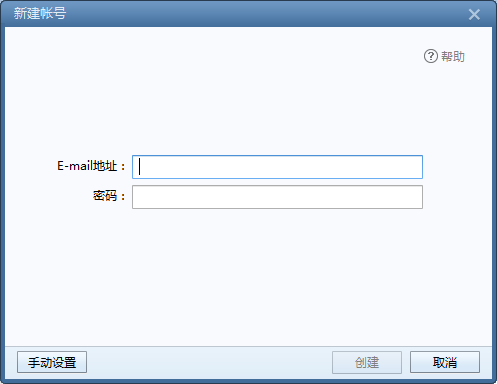
1. If this is a fresh Foxmail installation, the software will ask you to enter your email address and mailbox password when you first open it.
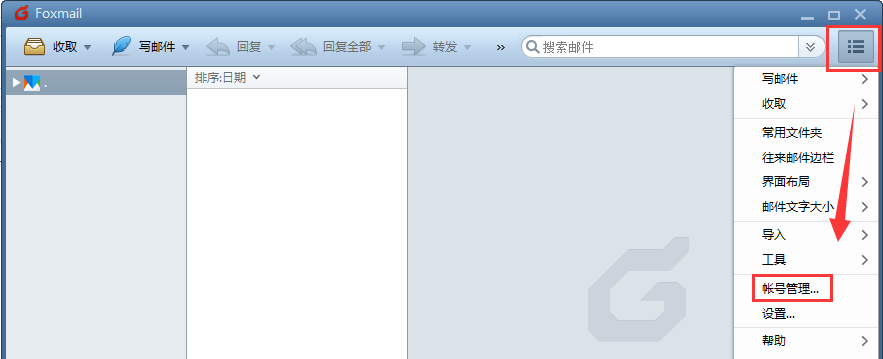
If other mailboxes have already been added, open the menu on the right side of Foxmail and click “Account Management”.
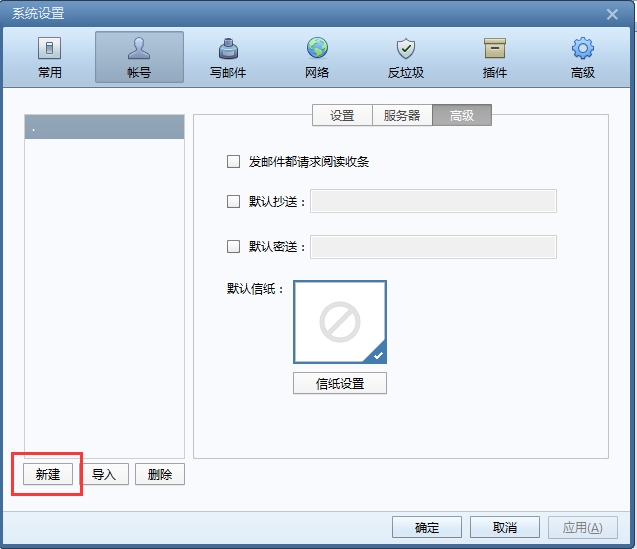
Then click “Create”.
2. In the new account window, click “Manual Setup” at the bottom left.
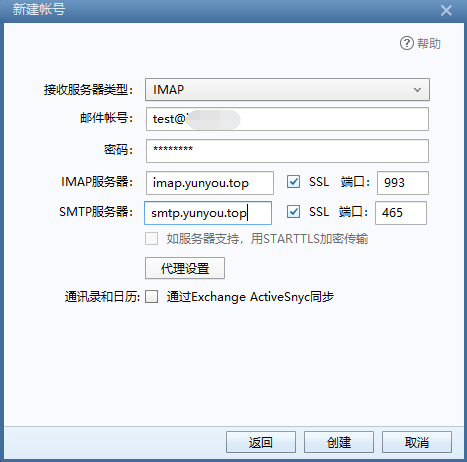
Fill in the email account and mailbox password. For the IMAP server, enter imap.yunyou.top; for the SMTP server, enter smtp.yunyou.top. Leave the ports as default, then click “Create”.
(If DNS records have been added for your domain, yunyou.top in the IMAP/SMTP servers may be replaced with your own domain — except when connecting with SSL.)
3. Once created, you can send and receive email in Foxmail.