Operation Scenario
This document guides you on how to use the ddns-go program to access internal network devices via ERANET domain names, supporting IPv4 and IPv6 domain name mapping.
This document uses Windows as an example; the steps are similar for other systems.
Prerequisites
1. Check the type of the public IP address obtained locally. You can directly search for “ip” on Baidu or visit ip138.com.
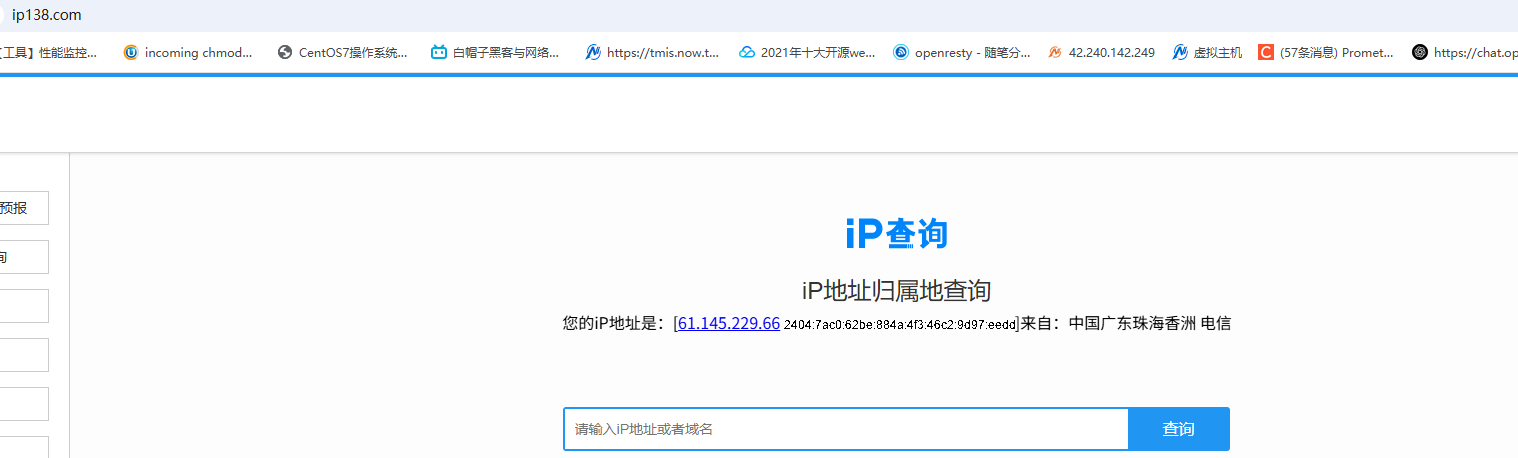
Note: If a geographical location is displayed, it indicates a WAN IP address. If a metropolitan area network is displayed, you need to contact your internet service provider to activate a WAN IP address.
2. Click to register an ERANET domain name Click to register an ERANET domain or use an existing domain and contact customer service to activate the domain management interface.
Operation Steps:
1. Download the ddns-go software
Click to Download DDNS software or Redirect to Official Website to Download
2. Create a DDNS software directory
Create a directory named “ddns” under drive C. Copy the downloaded software to the “ddns” directory on drive C and extract the files.
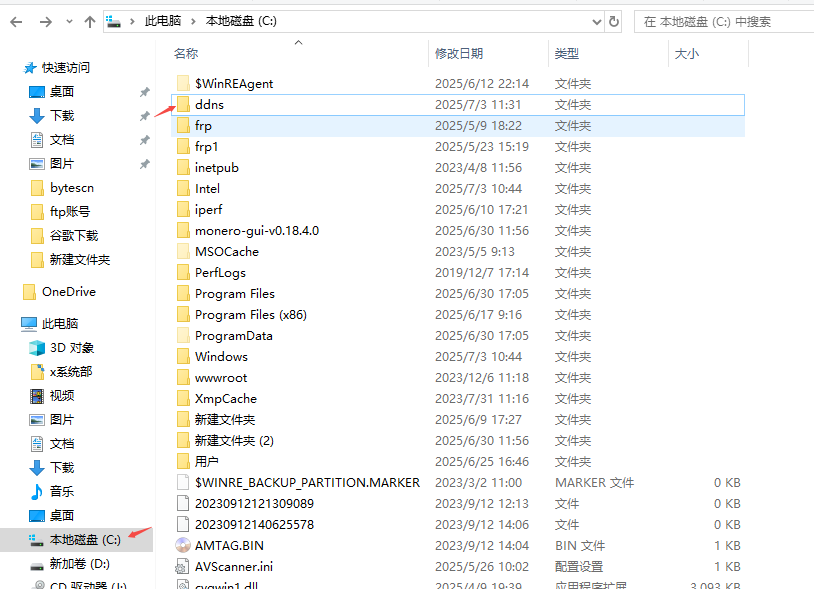
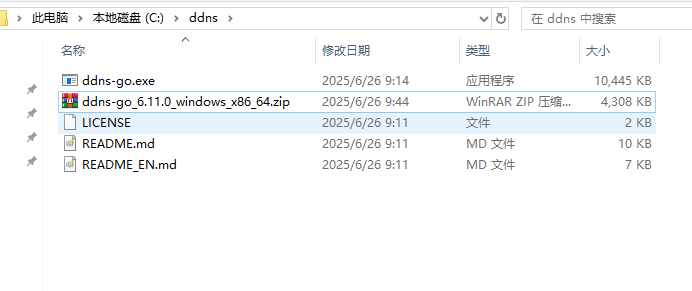
- Note: You can also place it in other directories. The file is in C:\ddns directory as an example.
3. Install the DDNS software
Press Windows key + R or search and run directly. Type “cmd” to enter the command line and switch to the C:\ddns directory.
Follow these steps to enter the command line:
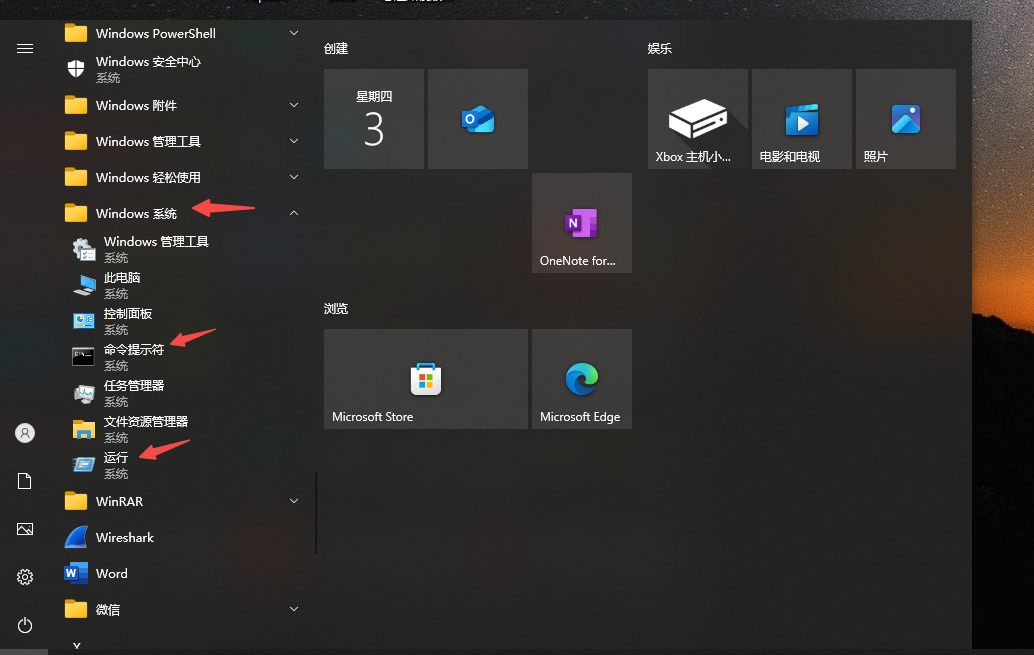
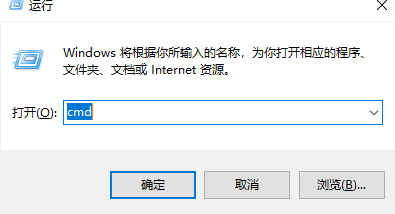
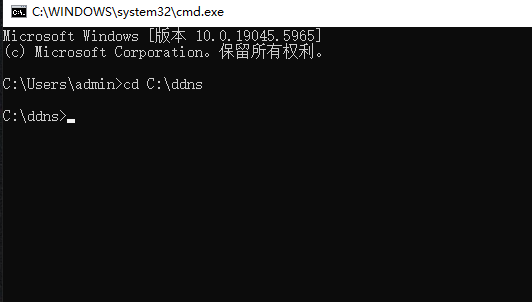
Switch to the C:\ddns directory
cd C:\ddns
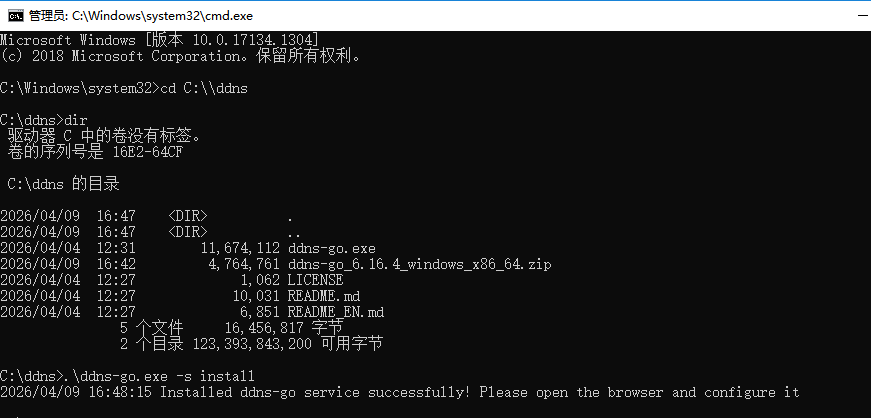
4. Install DDNS software
5. Configure DDNS software
Log in to the DDNS management page and configure DDNS
Open your browser and enter http://127.0.0.1:9876
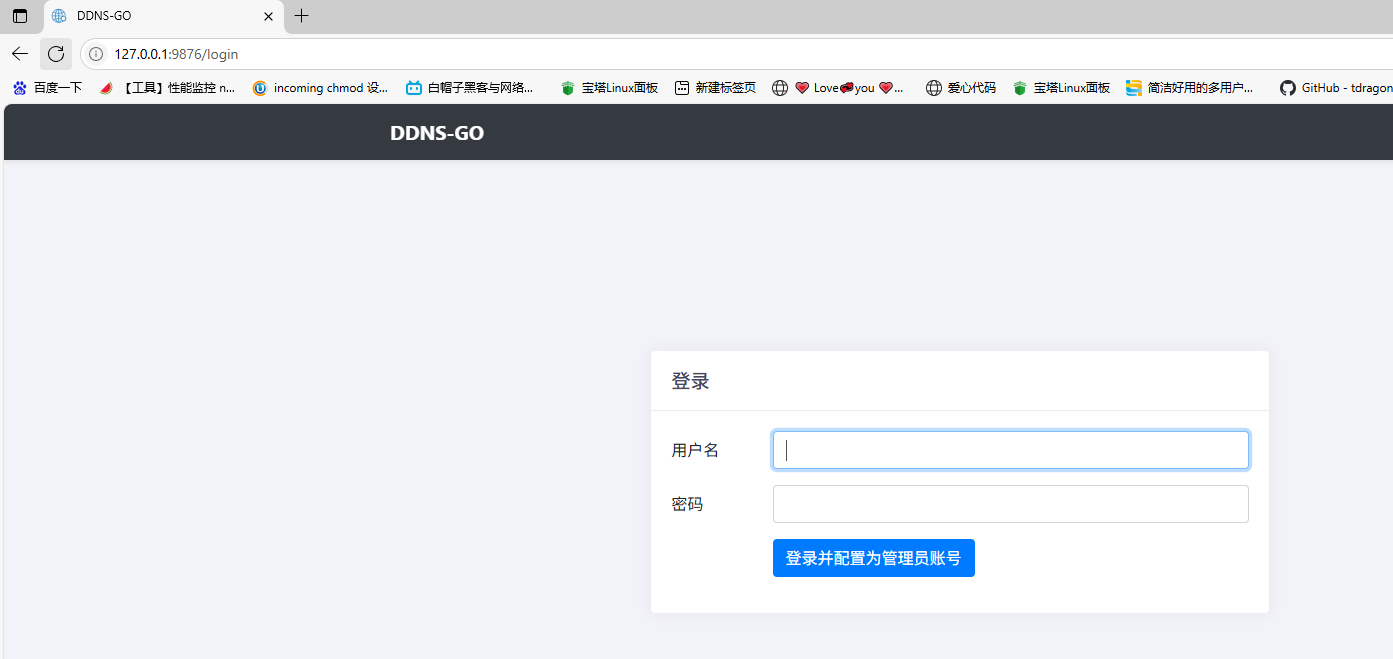
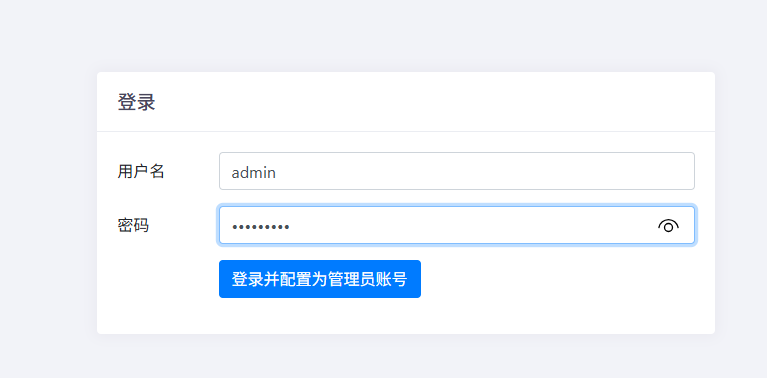
Set your login username and password (this username and password are user-defined and need to be remembered)
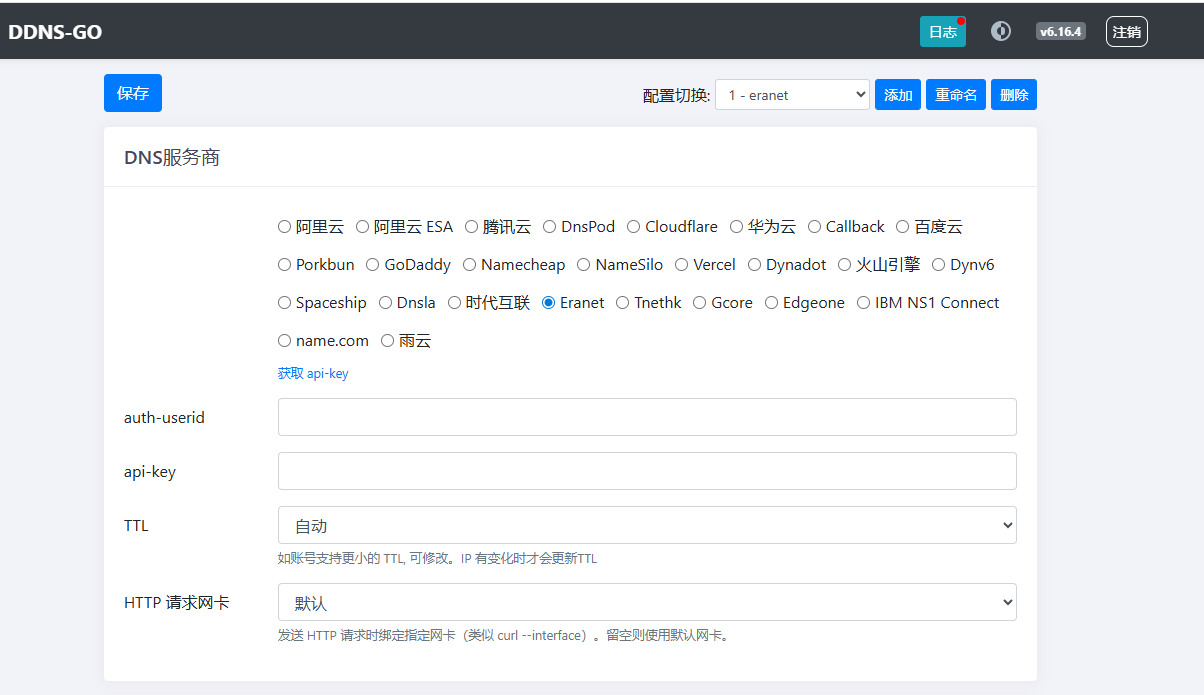
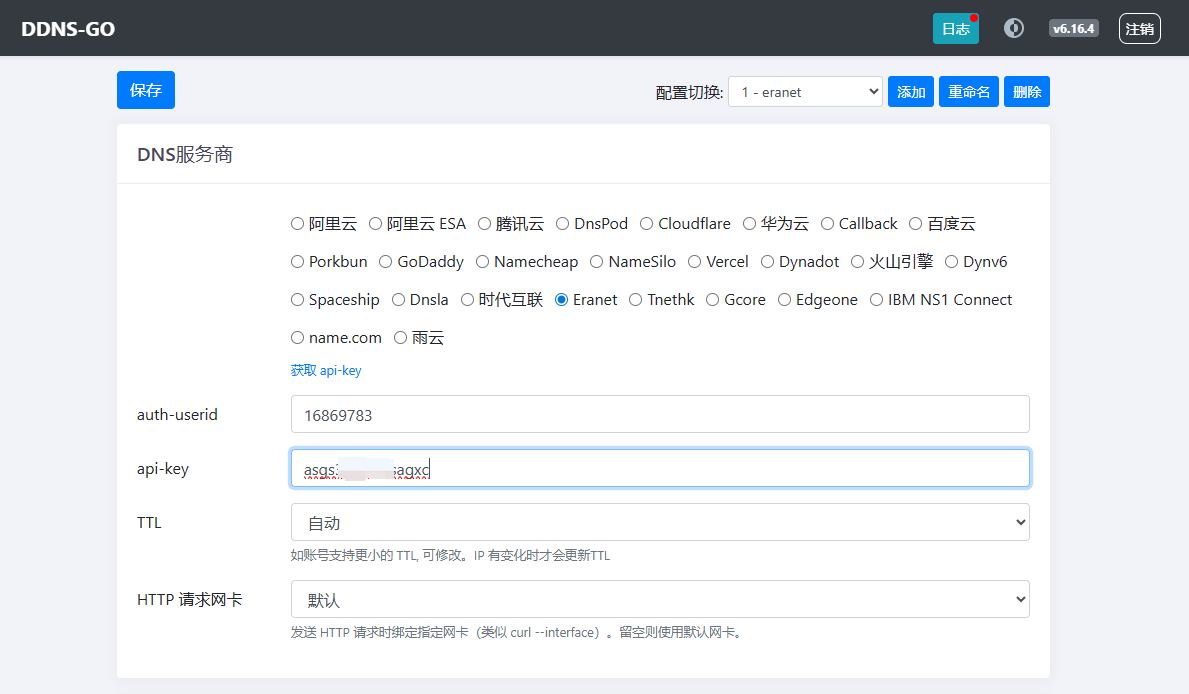
Select your domain name service provider ERAN ET
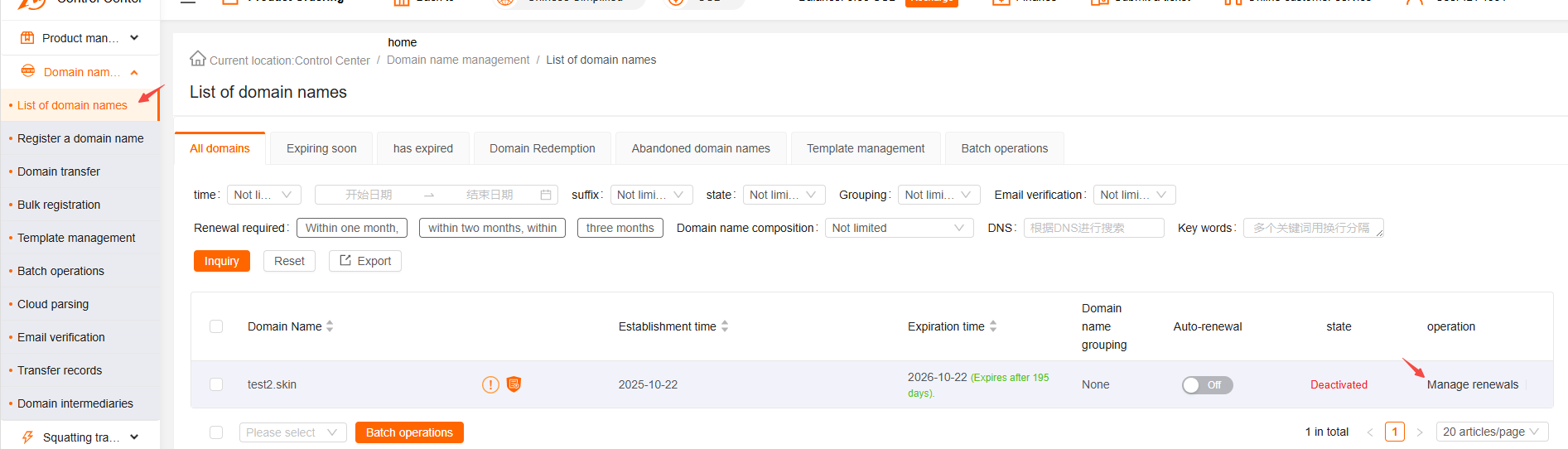
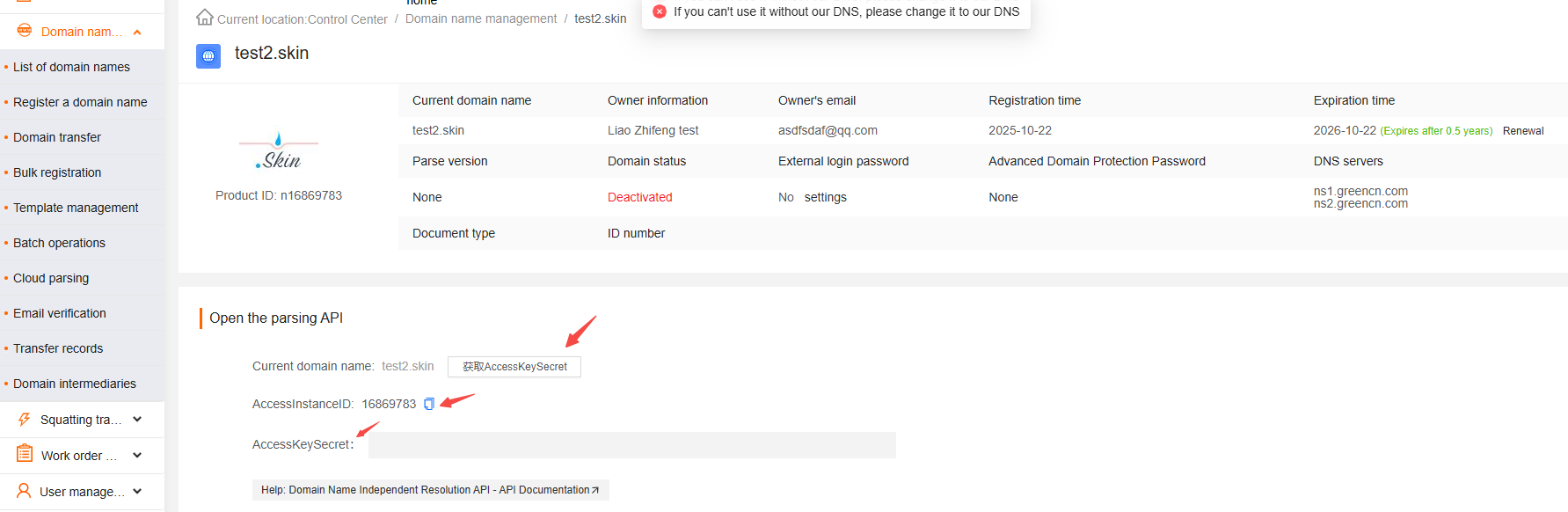
 Go to the ERANET backend domain list - click Management - API Settings, and view the ID and API key
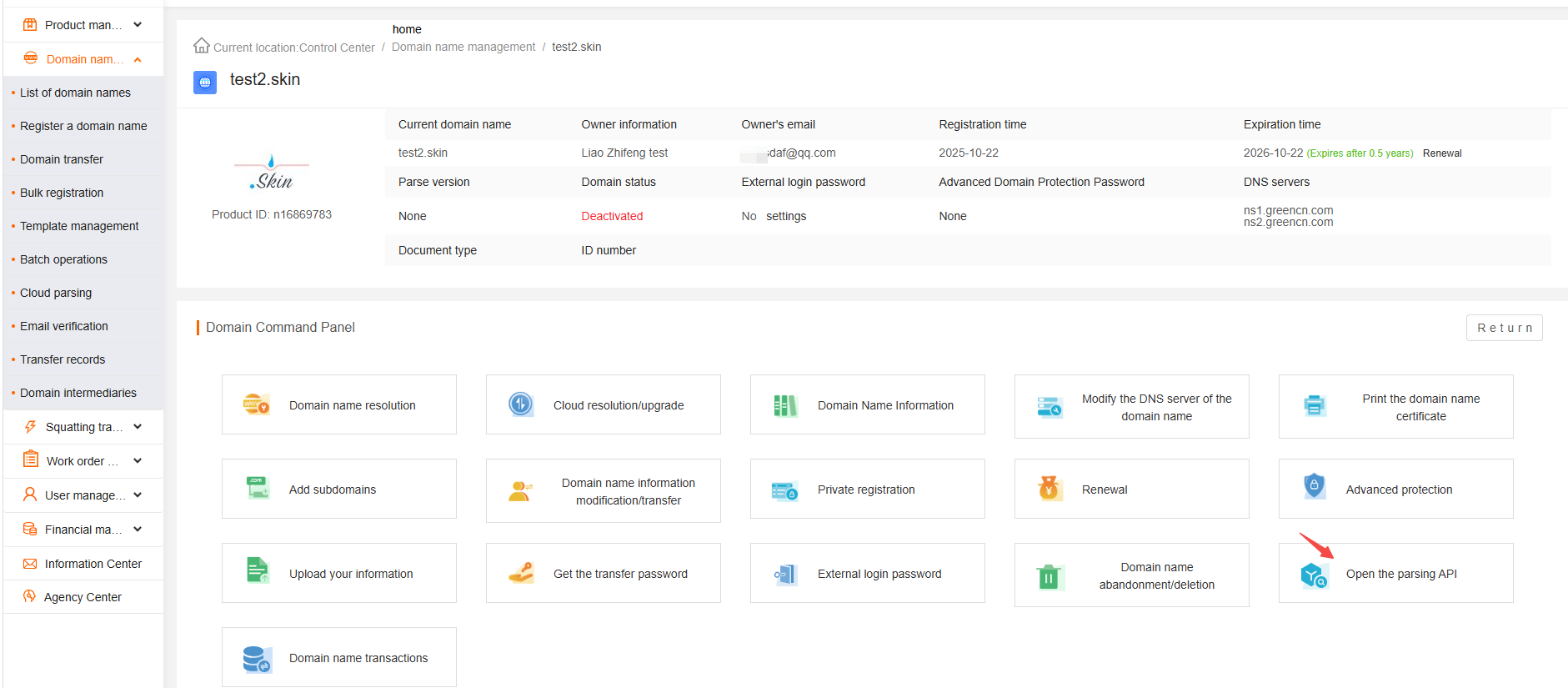
 Enter the username and API key obtained from the ERANET backend
 Enter the domain names that this ERANET account can manage, and set up subnets to access the intranet (multiple subnets can be set)
 Click Save to check if the subdomain’s DNS resolution has been added in the logs and ERANET management backend.
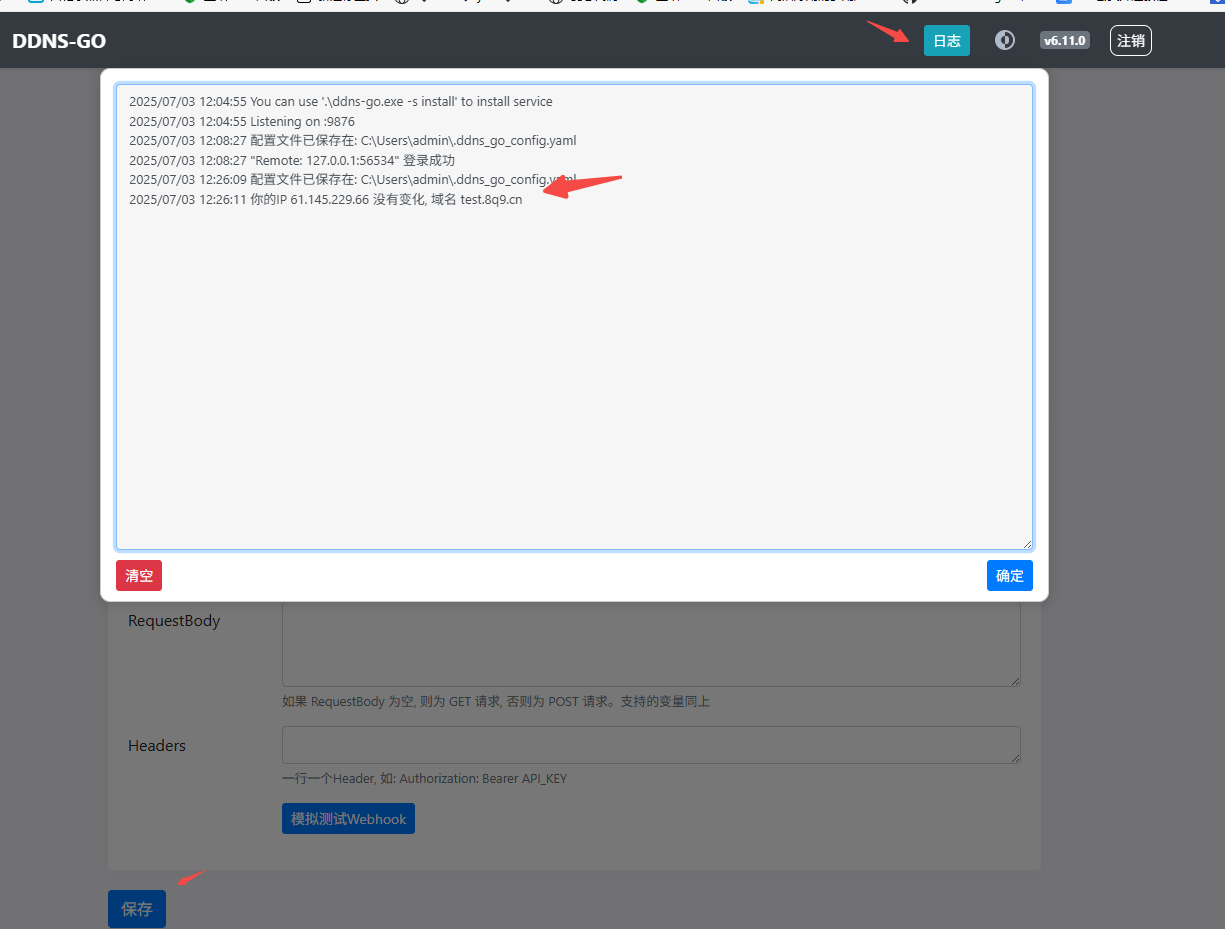

- Note: Use IPv4 or IPv6 depending on your network conditions. When the local public IP changes dynamically, the DDNS software will automatically update the DNS resolution. Internal network devices may experience temporary inaccessibility; recovery time depends on when the DNS resolution takes effect.